

 United Kingdom (UK)
 United States (US)
 Canada
 South Africa
 India
India Australia
 New Zealand
 China
China Russia
 Germany
 France
 Spain
Spain Netherlands
 Vietnam
 United Arab Emirates
 Italy
Italy Poland
 Thailand
 Türkiye





 Algeria


Online ESL class setup guide for effective teaching in 2026
Online ESL class setup guide for effective teaching in 2026

Setting up an effective online ESL classroom can feel overwhelming for new teachers. You need the right equipment, a professional environment, and reliable software to deliver engaging lessons. Many aspiring educators struggle with technical preparation, unsure where to invest their time and budget. This guide walks you through every essential step, from choosing hardware and optimizing your teaching space to selecting specialized platforms and troubleshooting common issues. By following these practical recommendations tailored for 2026, you will create a setup that enhances both your teaching experience and your students’ learning outcomes.
Table of Contents
- Preparing Your Hardware For Online ESL Teaching
- Creating An Engaging And Professional Teaching Environment
- Choosing The Right Online ESL Teaching Platforms And Tools
- Common Pitfalls And Troubleshooting Tips For Online ESL Class Setups
- Enhance Your Skills With TEFL Institute Courses
- Frequently Asked Questions
Key takeaways
| Point | Details |
|---|---|
| Hardware foundation | A reliable desktop computer or laptop is essential for smooth online teaching operations. |
| Environment matters | Proper lighting and clear audio significantly boost student engagement and comprehension. |
| Specialized platforms | Interactive features like whiteboards and breakout rooms enhance language instruction effectiveness. |
| Ergonomic workspace | Comfortable and ergonomic setups improve teacher comfort during extended teaching sessions. |
Preparing your hardware for online ESL teaching
Your computer serves as the central hub for all teaching activities. Choosing between a desktop and laptop depends on your teaching style and mobility needs. Desktops typically offer superior performance and upgrade flexibility, making them ideal if you teach from a dedicated home office. Laptops provide portability, allowing you to teach from different locations or while traveling. Considerations for choosing a computer include internet connection, ports, battery life, storage, RAM, and processor, all critical factors for seamless lesson delivery.
Your computer should meet minimum specifications to handle video streaming, screen sharing, and interactive tools simultaneously. Aim for at least 8GB of RAM, though 16GB provides better multitasking capability. An Intel i5 or i7 processor, or Apple M1/M2 chip, ensures smooth performance during video calls. Storage should be at least 512GB SSD for faster boot times and application loading. These specs prevent frustrating lags that disrupt lesson flow and student attention.
A reliable internet connection is crucial for maintaining video quality and preventing disconnections. Target minimum speeds of 5 Mbps upload and 10 Mbps download, though higher speeds provide better stability. Use an Ethernet cable whenever possible instead of relying solely on Wi-Fi, as wired connections reduce latency and packet loss. Test your connection speed regularly and schedule lessons during times when household internet usage is lower.
Quality peripherals make a significant difference in lesson delivery. Invest in a dedicated USB microphone or headset with noise cancellation to ensure students hear you clearly. A 1080p webcam captures facial expressions and visual cues essential for language learning. Verify your computer has sufficient USB ports for connecting multiple devices, and consider an HDMI port if you plan to use external displays. These accessories elevate your professional presentation and reduce technical interruptions.
Desktop vs Laptop Comparison
| Feature | Desktop | Laptop |
|---|---|---|
| Performance | Higher processing power and upgradability | Moderate performance, limited upgrades |
| Portability | Stationary, requires dedicated space | Mobile, teach from anywhere |
| Cost | Better value for performance | Premium for equivalent specs |
| Cooling | Superior cooling for extended use | May overheat during long sessions |
Minimum Hardware Requirements
- Processor: Intel i5/i7 or Apple M1/M2
- RAM: 8GB minimum, 16GB recommended
- Storage: 512GB SSD
- Internet: 5 Mbps upload, 10 Mbps download
- Webcam: 1080p resolution
- Microphone: USB or headset with noise cancellation
Pro Tip: Balance your budget between core computer specs and quality peripherals. A mid-range computer with excellent audio and video equipment often delivers better teaching results than a high-end machine with poor peripherals.
Explore virtual teaching platforms that work seamlessly with your hardware setup to maximize your investment.
Creating an engaging and professional teaching environment
Your physical teaching space directly impacts lesson quality and student perception. Proper lighting and clear audio are critical, as learners rely heavily on visual and auditory cues when learning a new language. Position yourself facing a natural light source, such as a window, or invest in a ring light to illuminate your face evenly. Avoid sitting with bright windows or lamps behind you, as backlighting creates shadows that obscure facial expressions and make you harder to see.
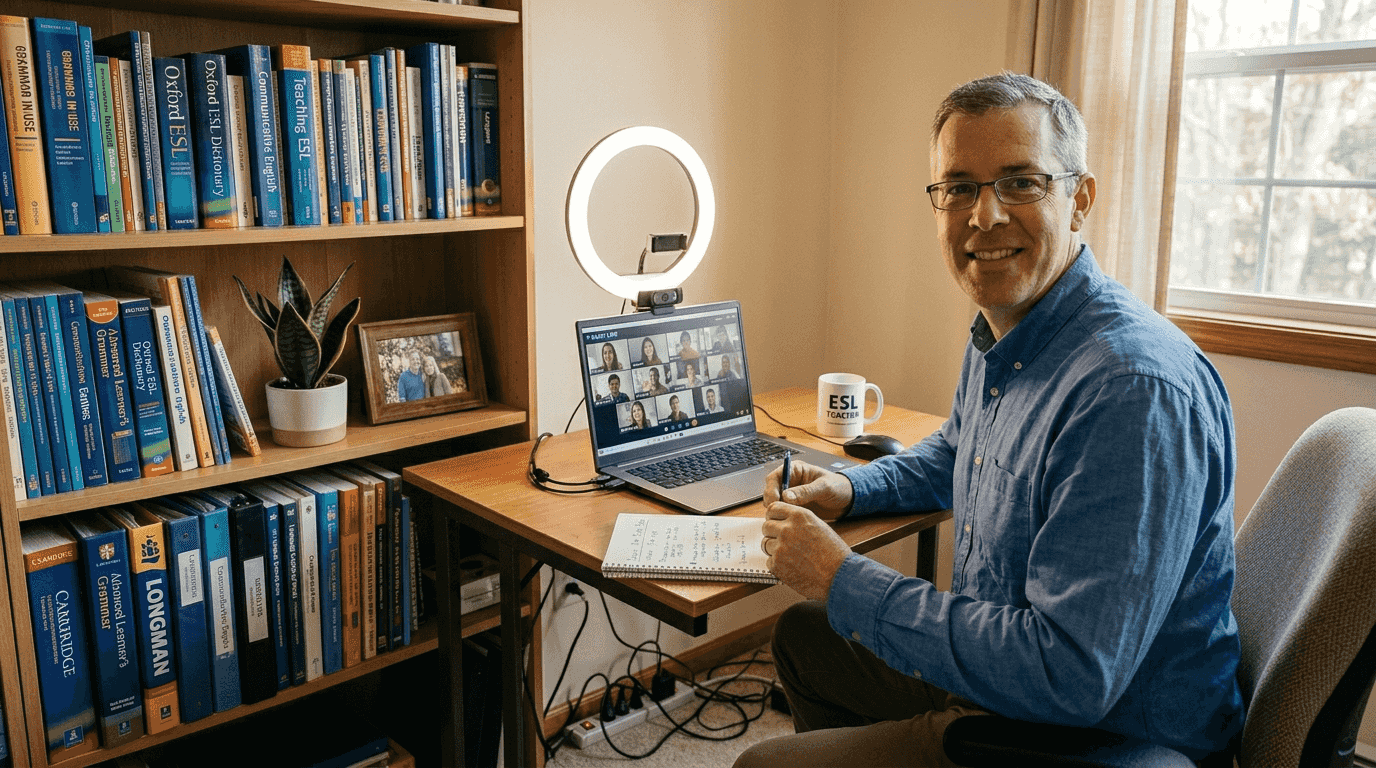
Audio clarity matters as much as video quality for language instruction. Use a quality microphone positioned close to your mouth to capture clear speech without background noise. Test your audio setup before classes and ask colleagues or friends for feedback. Background noise from household activities, traffic, or appliances can distract students and make pronunciation modeling difficult. Consider using noise-canceling headsets or teaching during quieter times of day.
Good lighting makes a bigger difference than a better camera when creating professional video presence. Soft, diffused light reduces harsh shadows and creates a welcoming atmosphere. Position your primary light source at eye level or slightly above, angled toward your face. Add a secondary fill light on the opposite side if shadows remain too pronounced. Warm-toned lighting (around 3000K to 4000K) appears more natural and flattering than cool fluorescent lights.
A comfortable and ergonomic workspace significantly improves your ability to teach effectively over extended periods. Invest in a supportive chair that promotes good posture and reduces back strain during multi-hour teaching blocks. Position your screen at eye level using a laptop stand or monitor arm to prevent neck pain. Use an external keyboard and mouse to maintain neutral wrist positions. These adjustments prevent fatigue and help you maintain energy throughout your teaching schedule.
Your background communicates professionalism and minimizes distractions. Choose a clean, uncluttered wall or use a bookshelf with organized materials as your backdrop. Avoid busy patterns, personal items that draw attention, or spaces where family members might walk through during lessons. Some teachers use neutral-colored curtains or room dividers to create a dedicated teaching zone. Virtual backgrounds can work but often create distracting glitches, so physical backgrounds usually work better.
Environment Setup Essentials
- Lighting: Natural light or ring light positioned in front
- Audio: USB microphone or noise-canceling headset
- Ergonomics: Supportive chair, laptop stand, external keyboard
- Background: Clean, neutral, free from distractions
- Dedicated space: Specific area designated for teaching
Pro Tip: Designate a specific area as your teaching space and enter ‘teacher mode’ each time you sit down. This mental shift helps you focus and signals to others in your household that you are working.
Complement your physical setup with essential ESL teaching resources and free online teaching resources that enhance lesson delivery.
Choosing the right online ESL teaching platforms and tools
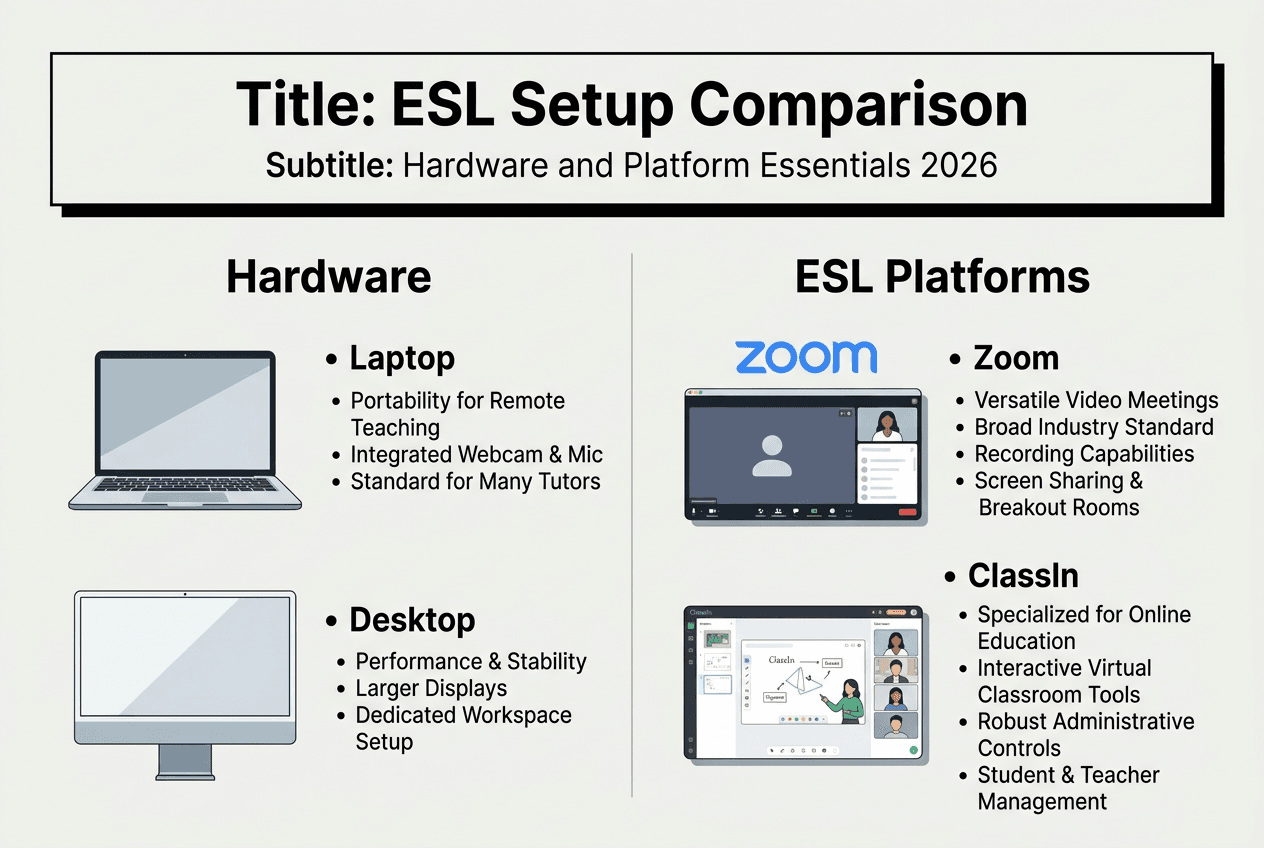
Selecting appropriate teaching platforms transforms your lessons from basic video calls into interactive learning experiences. Specialized ESL teaching platforms offer features tailored for language instruction, such as interactive whiteboards, breakout rooms, and integrated assessment tools. Look for platforms that support real-time collaboration, allowing students to write, draw, and manipulate digital objects during lessons. Screen sharing capabilities enable you to present slides, videos, and web-based activities seamlessly.
Interactive features keep students engaged and facilitate active learning. Whiteboards let you demonstrate grammar concepts, vocabulary, and pronunciation visually. Breakout rooms enable small group practice and peer interaction, essential for developing conversational skills. Live chat functions allow students to ask questions without interrupting the lesson flow. Polls and quizzes provide immediate feedback on comprehension and maintain student attention during longer sessions.
Successful virtual classrooms prioritize interactive features and intuitive design to enhance student engagement and reduce technical frustration. Choose platforms with clean interfaces that students can navigate easily, regardless of their technical proficiency. Complex systems with steep learning curves waste valuable class time on troubleshooting rather than instruction. Test platforms thoroughly before committing, and gather student feedback on usability.
WebRTC technology powers smooth real-time video and screen sharing in modern teaching platforms. This protocol enables low-latency communication directly between browsers without requiring additional software downloads. Platforms built on WebRTC typically offer better video quality and more reliable connections than older technologies. Verify that your chosen platform uses current web standards for optimal performance.
Artificial intelligence tools increasingly enhance teaching automation and personalization. AI education tools can generate customized practice exercises, provide instant feedback on written work, and adapt content difficulty to individual student levels. Some platforms incorporate AI-powered speech recognition to help students practice pronunciation independently. While AI cannot replace human instruction, it effectively supplements your teaching and provides students with additional practice opportunities.
Popular ESL Platform Comparison
| Platform | Key Features | Pricing Tier |
|---|---|---|
| VIPKid | Interactive slides, rewards system, mobile app | Commission-based |
| Zoom | Breakout rooms, screen sharing, recording | Free to $20/month |
| ClassIn | Whiteboard, cloud storage, lesson replay | $15 to $50/month |
| Duolingo | Gamification, adaptive learning, speech recognition | Free with premium options |
Must-Have Interactive Teaching Tools
- Interactive whiteboard with drawing and text tools
- Breakout room functionality for group work
- Screen sharing for presentations and videos
- Live chat for questions and feedback
- Polling and quiz features for assessment
- Recording capability for lesson review
Pro Tip: Opt for platforms with excellent user experience design to reduce learner frustration and increase engagement. A simpler platform that students can use confidently outperforms a feature-rich system that confuses them.
Explore comprehensive guides to online ESL teaching platforms and discover free ESL teaching tools that complement your chosen platform.
Common pitfalls and troubleshooting tips for online ESL class setups
Even well-prepared teachers encounter technical challenges that disrupt lessons. Unstable internet connections cause video freezing, audio dropouts, and disconnections that frustrate both teachers and students. Poor audio quality makes pronunciation modeling ineffective and forces students to strain to understand instructions. Distracting backgrounds pull student attention away from lesson content. Complex design, weak security, gaming features, and poor UX can lead to user abandonment and reduced engagement.
Prevention beats troubleshooting when it comes to technical issues. Test all equipment before each teaching session, including microphone levels, camera positioning, and internet speed. Close unnecessary applications and browser tabs that consume bandwidth and processing power. Keep backup lesson materials accessible offline in case you lose internet connectivity mid-lesson. Have technical support contact information readily available for platform-specific issues.
Overthinking equipment can prevent teachers from starting. Focus on the basics: clear sound, stable connection, and a friendly face. You do not need professional studio equipment to deliver effective ESL lessons. Many successful online teachers started with basic setups and upgraded gradually as they gained experience and income. Perfectionism delays progress, while practical action builds skills and confidence.
Simplify your setup to reduce potential failure points. Use wired connections instead of wireless when possible. Limit the number of browser extensions and background programs running during lessons. Choose reliable, well-established platforms over newer options with unproven track records. Create standard operating procedures for starting and ending classes to develop consistent habits that prevent forgotten steps.
Common Technical Problems and Solutions
- Internet drops: Switch to mobile hotspot as backup, reduce video quality
- Audio issues: Restart microphone, check system sound settings, use headset
- Video freezing: Close bandwidth-heavy applications, switch to audio-only temporarily
- Platform crashes: Have backup platform link ready, maintain student contact list
- Background noise: Use noise suppression software, teach during quieter hours
- Poor lighting: Adjust window blinds, reposition lamp, invest in ring light
Pro Tip: Simplify your setup and focus on communication clarity rather than high-end gear. Students care more about your teaching ability and friendly demeanor than your camera resolution or background aesthetics.
“The best teaching setup is the one you actually use consistently. Start with what you have, teach your first lessons, and improve incrementally based on real experience rather than theoretical perfection.”
Learn additional strategies through ESL teaching tips 2025 that help you handle classroom challenges confidently.
Enhance your skills with TEFL Institute courses
Your technical setup forms only part of teaching success. Professional training equips you with pedagogical strategies, curriculum design skills, and classroom management techniques that transform your lessons from functional to exceptional. TEFL Institute offers internationally recognized certification programs that complement your teaching setup and open doors to better opportunities. Our courses cover modern ESL methodologies, technology integration, and specialized instruction techniques tailored for online environments.

Explore TEFL certification courses in Texas designed for both new and experienced educators seeking to advance their careers. Our TEFL course extensions provide continued learning opportunities in specialized areas like business English, young learners, and exam preparation. Combining a strong technical setup with professional certification positions you for success in the competitive 2026 ESL market. Visit our site today to discover programs that match your teaching goals and schedule.
Frequently asked questions
How to ensure a stable internet connection for online ESL classes?
Use an Ethernet cable connected directly to your router instead of relying on Wi-Fi whenever possible. Aim for minimum speeds of 5 Mbps upload and 10 Mbps download, though higher speeds provide better stability during video lessons. Close unnecessary applications, browser tabs, and devices using your network during teaching sessions to maximize available bandwidth.
What are the best lighting practices for online ESL teaching?
Position natural light sources or a ring light in front of you at eye level to illuminate your face evenly. Avoid sitting with windows or bright lamps behind you, as backlighting creates shadows that obscure your facial expressions. Use soft, warm-toned lighting around 3000K to 4000K for the most natural and professional appearance on camera.
Which platforms are most effective for online ESL teaching?
Look for platforms offering interactive whiteboards, breakout rooms, live chat, and assessment tools specifically designed for language instruction. Popular options include VIPKid for structured curriculum delivery and Duolingo for gamified learning experiences. Consider platform ease of use and accessibility across different devices to ensure all students can participate effectively. Explore detailed comparisons at ESL teaching platforms.
How can I create a professional teaching space in a small room?
Designate a specific corner or desk area exclusively for teaching to establish clear boundaries between work and personal space. Use neutral-colored walls or simple backgrounds to minimize distractions without requiring extensive room modifications. Invest in compact ergonomic furniture like a laptop stand and external keyboard that improve comfort without consuming significant space.
